
As per the project I have to build a simple accordion and would like to share with you. So here I’m explaining how to build an accordion with jQuery and css. A plus and minus and a small gray gradient images are used in accordion. You can download and use for personal or commercial works but forbidden to redistribute other than bijusubhash.com. If you like this then please spread or back link from your website.The steps are explaining below. You can see a demo and download too.
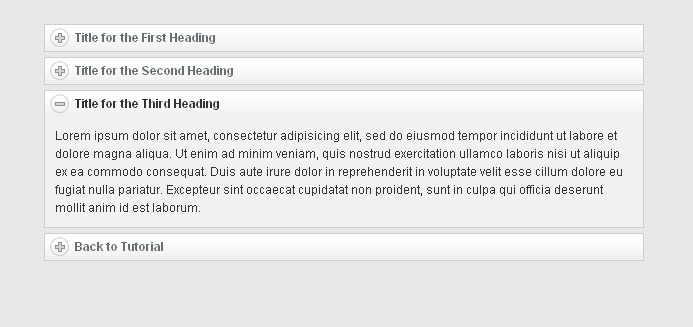
Step 1: The jQuery Code
<script type="text/javascript" src="../js/jquery.js" ></script>
<script  type="text/javascript" language="javascript">
$(document).ready(function(){
$('.adCntnr div.acco2:eq(0)').find('div.expand:eq(0)').addClass('openAd').end() /*find the first child and opended by default, and add class openAd*/
.find('div.collapse:gt(0)').hide().end()
.find('div.expand').click(function() {
$(this).toggleClass('openAd').siblings().removeClass('openAd').end()
.next('div.collapse').slideToggle().siblings('div.collapse:visible').slideUp();
return false;
});
})
</script>
Step 2 : CSS Markup
/* Accordion Styles starts */
.adqstdts {
min-height:75px;
background:#f0f0f1;
border:1px solid #dbdbdc;
border-left:none;
border-right:none;
margin-top:7px;
padding:7px;
}
.asdDts {
color:#737374;
font-size:12px;
font-weight:normal;
line-height:25px;
}
.printAd {
background:url(../images/printer.png) no-repeat ;
padding-left:25px;
padding-bottom:2px;
padding-top:2px;
color:#737374;
}
.exportAd {
background:url(../images/document-export.png) no-repeat ;
padding-bottom:2px;
padding-left:25px;
padding-top:2px;
color:#737374;
}
.adCntnr .acco2 .expand {
background:url(../images/title_bar_bg.gif) repeat-x ;
line-height:28px;
border-left:1px solid #cfcece;
border-right:1px solid #cfcece;
padding-left:5px;
}
.adCntnr .acco2 .expand a{
background:url(../images/rnd_plus_icon.png) no-repeat 0 4px;
padding-left:25px;
text-decoration:none;
}
.adCntnr .acco2 .openAd a{
background:url(../images/rnd_minus_icon.png) no-repeat 0 4px ;
padding-left:25px;
color:#333 !important;
text-decoration:none;
}

.adCntnr .acco2 .openAd {
background:url(../images/title_bar_bg.gif) repeat-x ;
line-height:27px;
border-left:1px solid #cfcece;
border-right:1px solid #cfcece;
padding-left:5px;
}

.adCntnr .acco2 .expand a{
color:#676f72;
}

.adCntnr  .accCntnt {
border:1px solid #cfcece;
border-top:none;
padding:10px;
background:#f1f1f1;
}
/* Accordion Styles starts */
Step 3 : HTML Markup
<div class="adCntnr" >
<div class="acco2">
<div class="expand"><a title="expand/collapse" href="#" style="display: block;">Title for the First Heading</a></div>
<div class="collapse">
<div class="accCntnt">
<div class="titlebarLeftc" style="height:25px; border-bottom:1px solid #dadada;">
<div class="titlebarRightc" style="height:25px;">
<div class="titlebar" style="height:25px;">
<table class="dataGridHdr" width="100%" cellpadding="0" cellspacing="0">
<tr>
<td class="dataGridHdr_boder" style="padding-left:0;";>Label One</td>
<td width="210" class="dataGridHdr_boder2">Label Two</td>
<td width="45" class="dataGridHdr_boder2">Label</td>
<td width="40" class="dataGridHdr_boder3">Label</td>
</tr>
</table>
</div>
</div>
</div>
<div class="dataGrid_container">
<table class="dataGrid" width="100%" cellpadding="0" cellspacing="0">
<tr class="dataAlterRw1">
<td class="dataGridHdr_boder">Lorem ipsum dolor sit amet, consectetur</td>
<td  width="210" class="dataGridHdr_boder" style="padding:0 7px;">Lorem ipsum</td>
<td  width="45" class="dataGridHdr_boder" style="padding:0 7px;">60%</td>
<td  width="47" class="dataGridHdr_boder3" style="padding:0 7px;">17</td>
</tr>
<tr class="dataAlterRw2">
<td class="dataGridHdr_boder">Lorem ipsum dolor sit amet</td>
<td  width="210" class="dataGridHdr_boder" style="padding:0 7px;">Lorem ipsum</td>
<td  width="45" class="dataGridHdr_boder" style="padding:0 7px;">10%</td>
<td  width="47" class="dataGridHdr_boder3" style="padding:0 7px;">17</td>
</tr>
<tr class="dataAlterRw1">
<td class="dataGridHdr_boder">Lorem ipsum dolor sit </td>
<td  width="210" class="dataGridHdr_boder" style="padding:0 7px;">Lorem ipsum</td>
<td  width="45" class="dataGridHdr_boder" style="padding:0 7px;">20%</td>
<td  width="47" class="dataGridHdr_boder3" style="padding:0 7px;">17</td>
</tr>
<tr class="dataAlterRw2">
<td class="dataGridHdr_boder" >Lorem ipsum dolor sit amet, consectetur</td>
<td  width="210" class="dataGridHdr_boder" style="padding:0 7px;">Lorem ipsum</td>
<td  width="45" class="dataGridHdr_boder" style="padding:0 7px;">30%</td>
<td  width="47" class="dataGridHdr_boder3" style="padding:0 7px;">17</td>
</tr>
</table>
</div>
</div>
</div>
<div style="height:5px;"></div>
<div class="expand"><a title="expand/collapse" href="#" style="display: block;">Title for the Second Heading</a></div>
<div class="collapse">
<div class="accCntnt">
<p style="font-weight:normal; color:#333;">
Lorem ipsum dolor sit amet, consectetur adipisicing elit, sed do eiusmod tempor incididunt ut labore et dolore magna aliqua. Ut enim ad minim veniam, quis nostrud exercitation ullamco laboris nisi ut aliquip ex ea commodo consequat. Duis aute irure dolor in reprehenderit in voluptate velit esse cillum dolore eu fugiat nulla pariatur. Excepteur sint occaecat cupidatat non proident, sunt in culpa qui officia deserunt mollit anim id est laborum.
</p>
</div>
</div>
<div style="height:5px;"></div>
<div class="expand"><a title="expand/collapse" href="#" style="display: block;">Title for the Third Heading</a></div>
<div class="collapse">
<div class="accCntnt">
<p style="font-weight:normal; color:#333;">
Lorem ipsum dolor sit amet, consectetur adipisicing elit, sed do eiusmod tempor incididunt ut labore et dolore magna aliqua. Ut enim ad minim veniam, quis nostrud exercitation ullamco laboris nisi ut aliquip ex ea commodo consequat. Duis aute irure dolor in reprehenderit in voluptate velit esse cillum dolore eu fugiat nulla pariatur. Excepteur sint occaecat cupidatat non proident, sunt in culpa qui officia deserunt mollit anim id est laborum.
</p>
</div>
</div>
<div style="height:5px;"></div>
<div class="expand"><a title="expand/collapse" href="#" style="display: block;">Back to Tutorial</a></div>
<div class="collapse">
<div class="accCntnt">
<p style="font-weight:normal; color:#333;">
<div style="text-align:center;"><a href="#">Back to the Tutorial</a></div>
</p>
</div>
</div>
</div>
</div>
| [Download not found] |  |
![[Facebook]](https://www.bijusubhash.com/wp-content/plugins/bookmarkify/facebook.png)
![[Jamespot]](https://www.bijusubhash.com/wp-content/plugins/bookmarkify/jamespot.png)
![[Reddit]](https://www.bijusubhash.com/wp-content/plugins/bookmarkify/reddit.png)
![[StumbleUpon]](https://www.bijusubhash.com/wp-content/plugins/bookmarkify/stumbleupon.png)
![[Twitter]](https://www.bijusubhash.com/wp-content/plugins/bookmarkify/twitter.png)
![[Email]](https://www.bijusubhash.com/wp-content/plugins/bookmarkify/email.png)
This is great! Thanks 🙂 The styling on it is beautiful.
Thank you Alyssa
Hey Biju,
I really love this JQuery Accordion! Thanks for that! I do have a question: Is there maybe a way to adjust the jQuery code to make the accordion fully collapsed by default?
Thanks!
Hi Emiel..
thank you for like this accordion.
here is the code for collapsed by default.
You just have to edit the first line code like this
$(‘.adCntnr div.acco2:eq(0)’).find(‘div.expand:eq(0)’).addClass(”).end()…
the difference is, I removed the value from addClass, after that you needs to edit the second line like this…
.find(‘div.collapse’).hide().end()..
I removed the “:gt(0)”.
if you want to expand by default, just edit only the second line code like this…
.find(‘div.collapse:gt(0)’).show().end()…
I used ‘show()’ instead of ‘hide()’.
what about a mousehover or hoverevent to open accordion?
Hi SeanJennin,
just add “.mouseover” instead of “.click”.
It will works.
Hi .. Thanks for everything ..
Great job .. But I have a question , How to make the tabs CLOSE in default??? I don’t want the first tab to be opened by default ..
Hi Haidar,
Kindly please read the reply of “Emiel”, there I have described about , how to expand or collapsed by defautl.
Best accordion, thanks!
I miss only one thing to be full of happiness.
How can I do to be seen the text of each of the first line, but all at once?
I care about something in the style of a preview.
Of course, when you click the boxes will expand as the original.
Hi,
how can i insert a jqplot in a hidden area??
Any idea?
Not a jquery expert,
need to have several accordions in 6 columns any ideas how to do this? my js fiddle http://jsfiddle.net/FL7q3/
Hi, thank you for such a great accordion ! It works really well.
Can you help me, how can I have 2 accordions on the same page?
max. I think we are trying to find the same solution. I have found a quick hack by making ANOTHER <script> see below, I have changed adCntnr toadCntnrB & acco2 to acco2B then also made these changes to the 2nd accordion and appropriate changes to the stylesheet. This may become a bit tedious/ unefficient if you have 6 but I thought I\’d share it anyway.
<script type=\"text/javascript\" language=\"javascript\">
$(document).ready(function(){
$(\’.adCntnrB div.acco2B:eq(0)\’).find(\’div.expand:eq(0)\’).addClass(\’openAd\’).end()
.find(\’div.collapse:gt(0)\’).hide().end()
.find(\’div.expand\’).click(function() {
$(this).toggleClass(\’openAd\’).siblings().removeClass(\’openAd\’).end()
.next(\’div.collapse\’).slideToggle().siblings(\’div.collapse:visible\’).slideUp();
return false;
});
})
</script>
First, praise! This is an awesome tutorial. I am just getting into web design and my project that I am doing is to add an accordian drop down menu in the middle of the site. But there is stuff underneath it so I was trying to get it to stay within the box its in instead of spilling over onto the boxes below. The only thing I could think of doing was an iframe but I would rather see it first with css. Is that even possible?
hi biju,
how can add picture in collapse menu
1) i want incorporate Small Pic Left Side of Collapse Menu, is it possible. When i click the bottom menu its cover up also